

Product Overview
This product will enable a tool in Sugar that will help users verify email addresses by leveraging the powerful Hunter.io verification system. This will prevent developing a bad IP reputation over time, ensuring you are only targeting verified email addresses.
This tool will enable you to verify the email address of a Contact, Lead, Account or Target.
End-User Guide
Prerequisites
Ensure the product has been successfully installed and configured. For instructions on how to do this, please follow the Installation & Set Up Guide or contact your System Administrator.
Verifying an email address
Navigate to a Contact, Lead, Account or Target record in Sugar. You’ll notice a new button in the header:
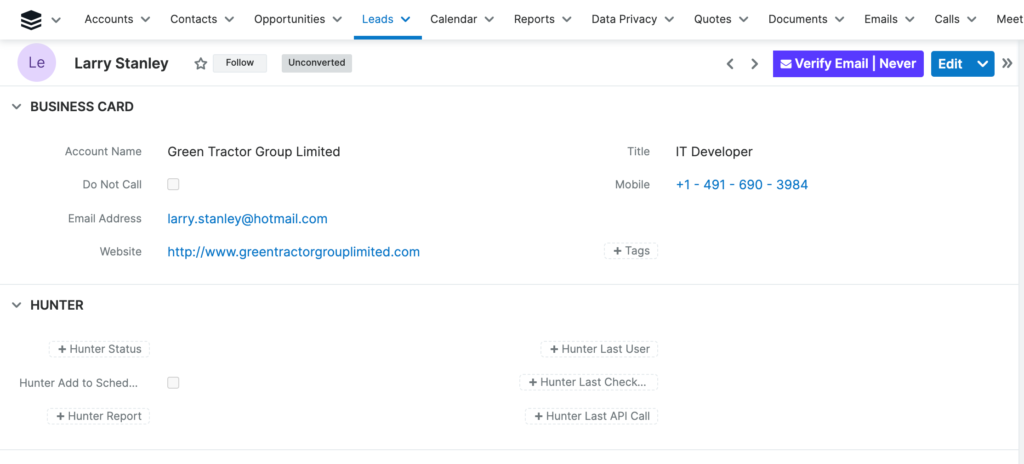
Clicking on this button will initiate the verification of the records’ primary email address and return the results into the Hunter-related fields as well as the button.
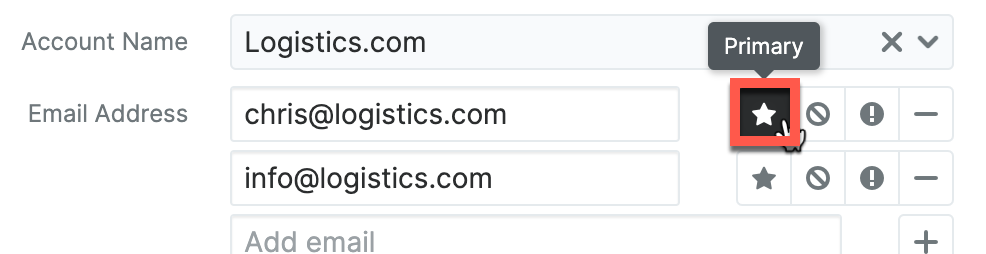
Note: The Hunter Verifier Tool will only verify the records’ primary email address:
The Hunter-related fields (which may be located elsewhere on your layout to the screenshot above) contain some key information on the verification result.
New Fields Added to Contacts/Leads/Accounts/Targets
| Field Label | Description |
| Hunter Status | This dropdown field will display the current status of an Account/Contact/Lead/Target that has been verified. |
| Hunter Last Checked | This Date/Time field will display the last time an attempt has been made to verify the email address. |
| Hunter Report | This field will display the results of various web locations the email has been detected by the Hunter verification service. |
| Hunter Last Api Call | This is a TextArea field which displays the complete API response from the Hunter service. This field is useful for power users or system administrators to report on key words returned from Hunter. |
| Hunter Last User | This TextField displays the username of the last Sugar user who performed the most recent email verification. |
| Hunter Add to Scheduler | This checkbox is used when wanting to leverage the Scheduled Job to perform mass email verifications at once. |
Status Examples
Verifying an email address will likely result in one of the below statuses:
| Status | Description |
| Valid | You can use the email safely. |
| Invalid | The email address failed the verification checks and should not be used since it doesn’t exist. |
| Valid Domain – Accept All | The email server has an accept-all policy which prevents us from knowing if an inbox has been set up for that email address. The email should be used with caution. |
| Free Webmail | The email is from a domain name used to create personal email addresses. As Hunter focuses on professional emails only, webmails aren’t verified. |
| Disposable | The email address comes from a disposable email service provider. |
| Unknown – Unable to verify | Hunter could not determine the validity of the email. We recommend running a new verification after a few minutes. |
| Restricted Hunter.io Account – Speak with your administrator | Restricted Hunter.io Account – Speak with your administrator. |
| Invalid API Key | The authentication failed due to an invalid API key – Speak with your administrator. |
| Verification Failed | Verification Failed |
| Invalid email format | Invalid email format |
| Limit for the number of verifications per domain in 24 hours exceeded | Limit for the number of verifications per domain in 24 hours exceeded |
| No email parameter identified | No email parameter identified |
| The email address owner requested that their personal data is not processed. | The email address owner requested that their personal data is not processed. |
| Error – Other | An error has been identified. Please contact your System Administrator. |
Running mass-verifications
This tool can provide you with the ability to verify multiple Contacts, Leads, Accounts or Targets at once.
This would be an excellent aid in cleansing your database and highlighting areas where you are lacking ‘active’ contacts against some of your key accounts and prospects.
All you need to do is mass update the “Hunter Add to Scheduler” checkbox field to “Yes”. Here’s a quick video in case you are unsure:
Please Note: If the field Hunter Add to Scheduler is not available for Mass Update, please contact your System Administrator.
Reporting on your data
The Hunter fields created for Contacts, Leads, Accounts & Targets are available to be fully reportable.
Here are some useful report ideas to show the status of your database in Sugar. For simplicity, we will focus on the Contacts module.
You may want to build a dashboard dedicated to reporting on some Hunter key metrics:
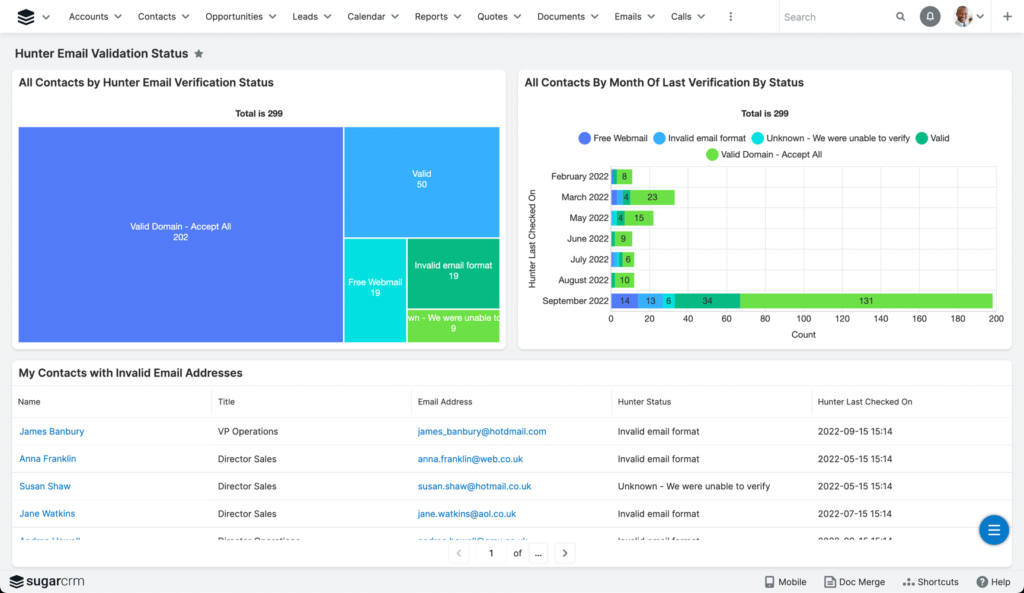
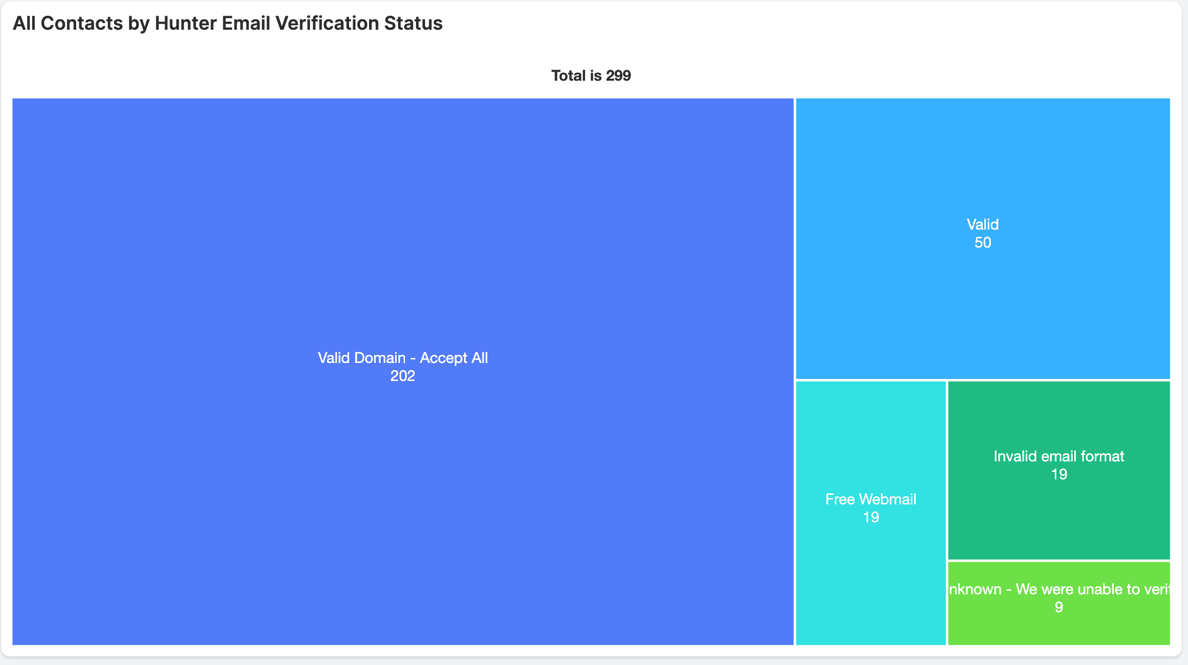
Summation Report 1: Show me all Contacts by Hunter Email Verification Status
This one is useful for getting an overall picture of the email statuses in a particular module.
It highlights the state of your database and whether you have any invalid emails that you need to address.
How to build it…
We are assuming that you are familiar with the Reports and Dashboards module.
- Create a new Report in the Reports module
- Summation Report with Details
- No Filters
- Group by the ‘Hunter Status’
- Display Summaries: Count
- Display Columns: Name, Hunter Status, Hunter Last Checked
- Choose your chart type
Once embedded onto your dashboard, the Treemap-style chart (if chosen) simulates your data sizes into blocks to help understand the numbers.
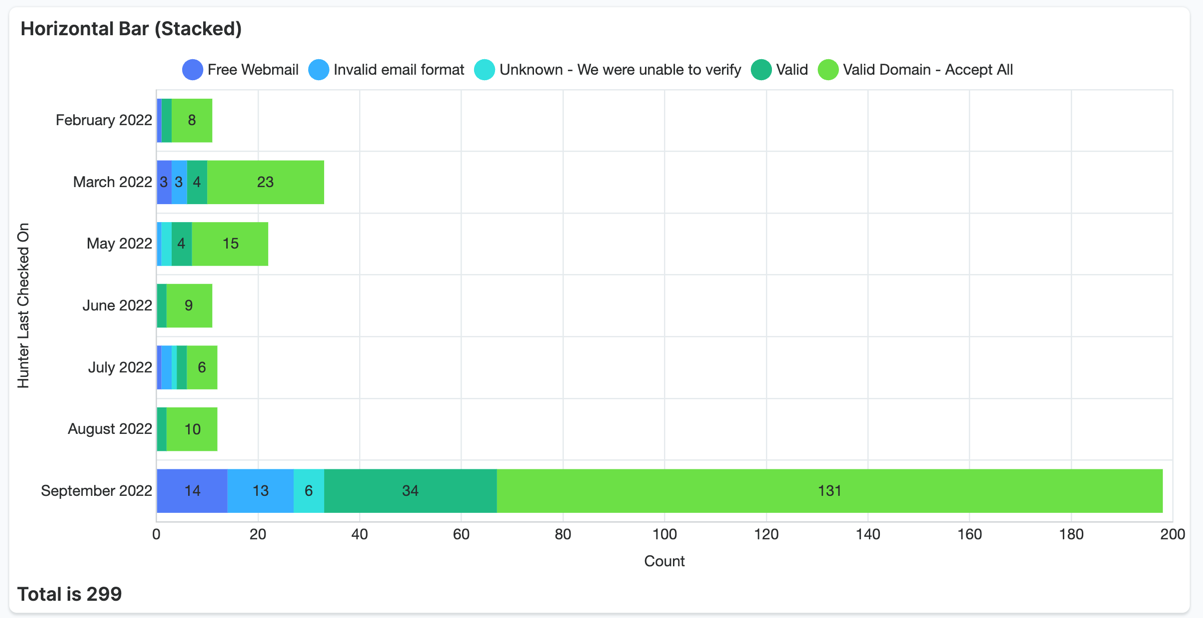
Summation Report 2: Show me all Contacts by Month of Last Verification.
This one is great for getting an overall picture of when your contacts were last verified, and what the status is. This could help you understand how many contacts should be re-verified.
How to build it…
- Create a new Report in the Reports module
- Summation Report with Details
- No Filters
- 1st Group by the month of ‘Hunter Last Checked’
- 2nd Group by the ‘Hunter Status’
- Display Summaries: Count
- Display Columns: Name, Hunter Status, Hunter Last Checked
- Choose your chart type
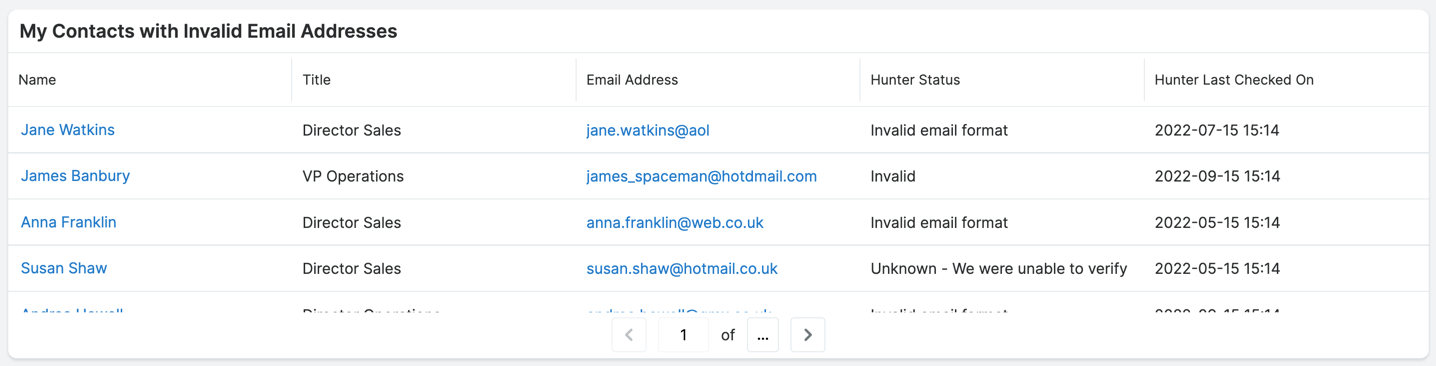
Useful Dashlet Idea: My Contacts with Invalid Email Addresses
This dashlet will allow end users to gain visibility on the Contacts assigned to them where some urgent amendments need to take place.
How to build it…
- Add a List-View type dashlet to your dashboard
- Select either the Contacts, Leads, Accounts or Targets module
- Choose the columns that you wish to see
- Filter by:
- Hunter Status is one of: Invalid, Unknown – Unable to verify, Invalid email format
- Assigned to: me
This concludes the end-user guide.